
QSEoW Examples
This page shows detailed examples for creating JWTs for Qlik Sense Enterprise on Windows (QSEoW).
Prerequisites
Before using JWTs with QSEoW, you need:
- A virtual proxy configured for JWT authentication
- A certificate/private key pair (or let qs-jwt create one)
- The audience value from your virtual proxy configuration
Mode 1: Using Existing Private Key File
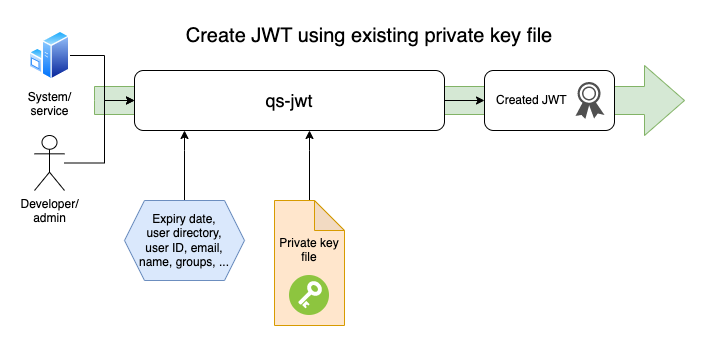
If you already have a certificate with an associated private key (PEM encoded), that key can be used to sign the created JWT. The public part of the certificate is entered in the QSEoW virtual proxy configuration.
Create a certificate using openssl
If you want to create a certificate and a private key manually that's easy too.
On macOS it can look like this:
openssl genrsa -out privatekey.pem 4096

openssl req -new -x509 -key privatekey.pem -out publickey.cer -days 1825
# You'll be prompted for certificate details
# You can leave most fields blank by entering '.'
# For Common Name, you can enter something like 'qs-jwt'
Running qs-jwt on macOS
This example will:
- Create a JWT for Qlik Sense Enterprise on Windows (the
create-qseowcommand) - Create a JWT for user
annain Sense userdirectoryGRUSGRUS. "Grusgrus" is a fictitious company - The JWT will expire in 365 days
- The private key in file
privatekey.pemwill be used to sign the JWT - Set claims for
useremailandusernameto[email protected]andAnna Anderson, respectively - The audience option must match the audience specified in the Qlik Sense virtual proxy
- Two groups are defined for this user:
group1andgroup 2. These correspond to groups in Qlik Sense
Command (assuming the qs-jwt binary is available in the current directory):
./qs-jwt create-qseow \
  --userdir GRUSGRUS \
  --userid anna \
  --username "Anna Anderson" \
  --useremail "[email protected]" \
  --audience hdJh34wkK \
  --cert-privatekey-file privatekey.pem \
  --groups group1 "group 2" \
  --expires 365d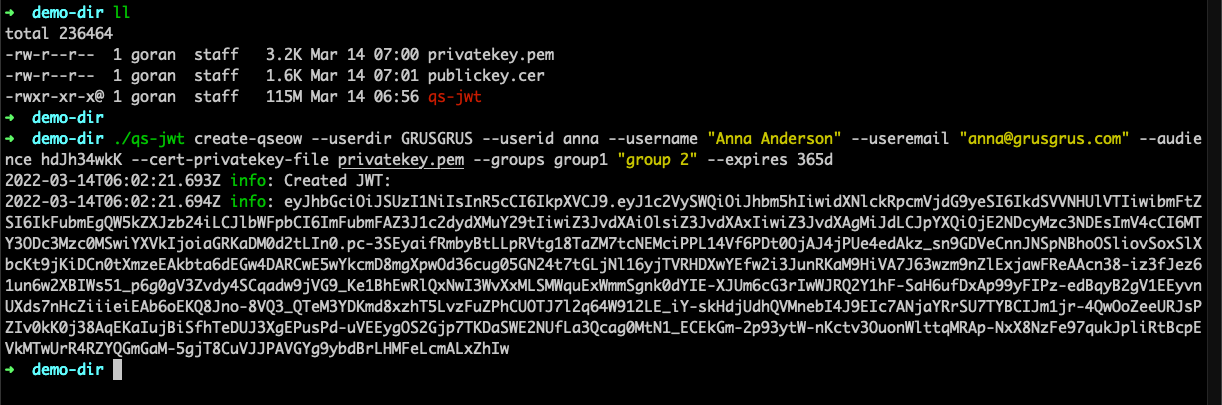
Running qs-jwt on Windows Server
This example uses a private key that was created using openssl, as describe above.
Remember: Don't forget to unblock the downloaded qs-jwt ZIP file before unzipping it.
Failing to unblock it may prevent proper execution of qs-jwt.exe.
qs-jwt.exe create-qseow `
  --userdir GRUSGRUS `
  --userid anna `
  --username "Anna Anderson" `
  --useremail "[email protected]" `
  --audience hdJh34wkK `
  --cert-privatekey-file privatekey.pem `
  --groups group1 "group 2" `
  --expires 365d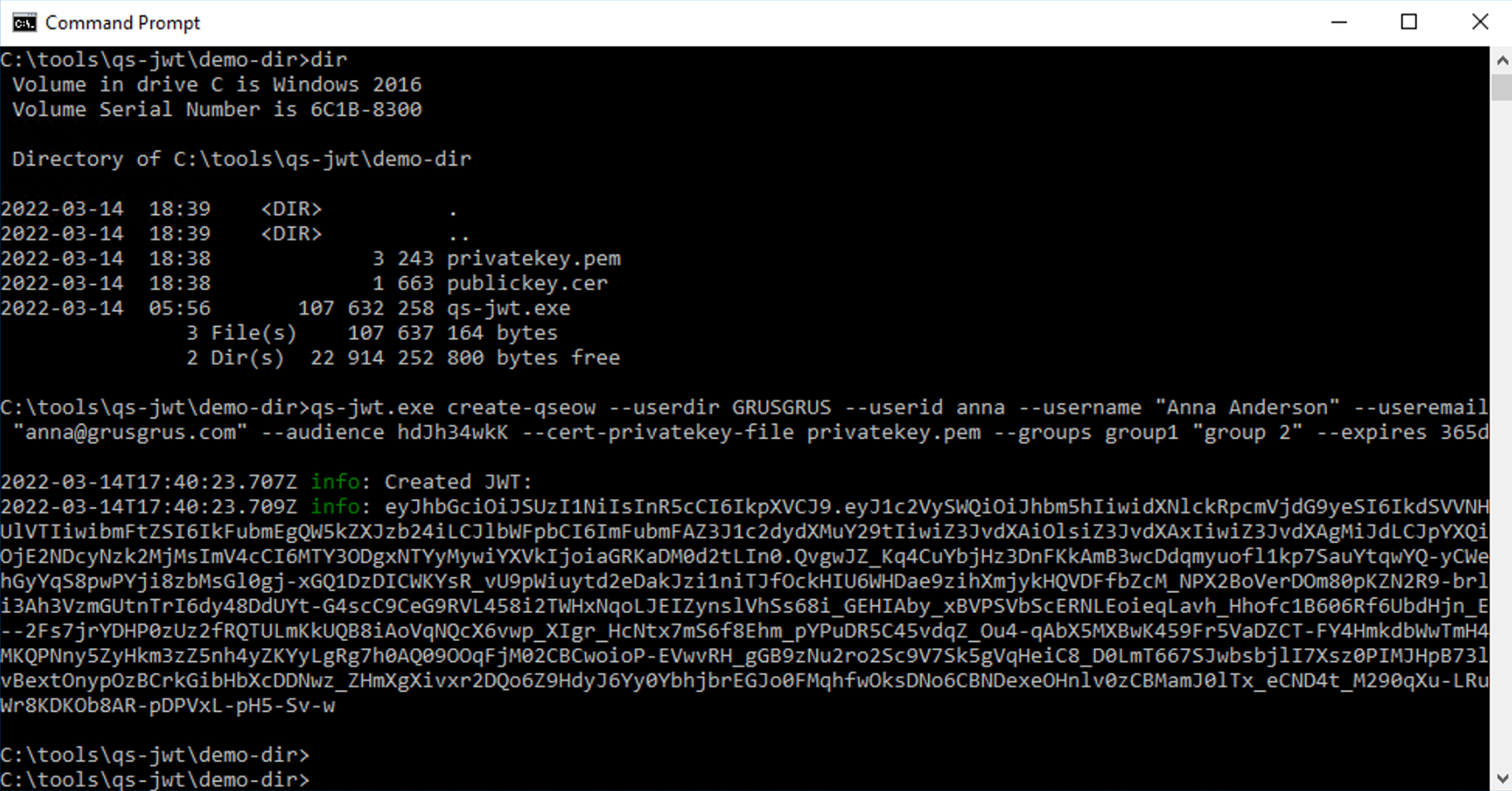
Mode 2: Using Existing Private Key as Parameter
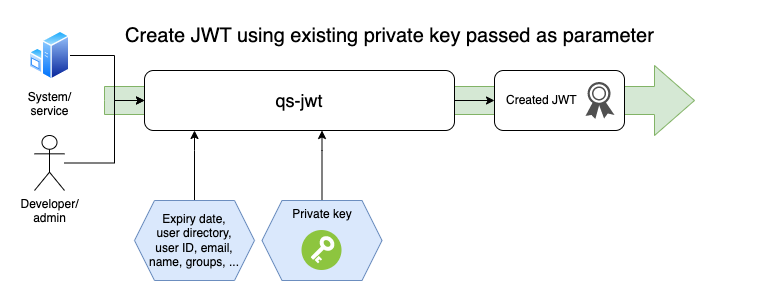
Running qs-jwt on macOS
This example will:
- Set the environment variable
QSJWTPRIVKEYto the contents of the private key inprivatekey.pemfile - Create a JWT for Qlik Sense Enterprise on Windows (the
create-qseowcommand) - Create a JWT for user
annain Sense userdirectoryGRUSGRUS. Grusgrus is a fictitious company - The JWT will expire in 365 days
- The private key in environment variable
QSJWTPRIVKEYwill be used to sign the JWT - Set claims for
useremailandusernameto[email protected]andAnna Anderson, respectively - The audience option must match the audience specified in the Qlik Sense virtual proxy
- Two groups are defined for this user:
group1andgroup 2. These correspond to groups in Qlik Sense
Commands:
export QSJWTPRIVKEY=$(cat ./privatekey.pem)./qs-jwt create-qseow \
--userdir GRUSGRUS \
--userid anna \
--username "Anna Anderson" \
--useremail "[email protected]" \
--audience hdJh34wkK \
--cert-privatekey "$QSJWTPRIVKEY" \
--groups group1 "group 2" \
--expires 365d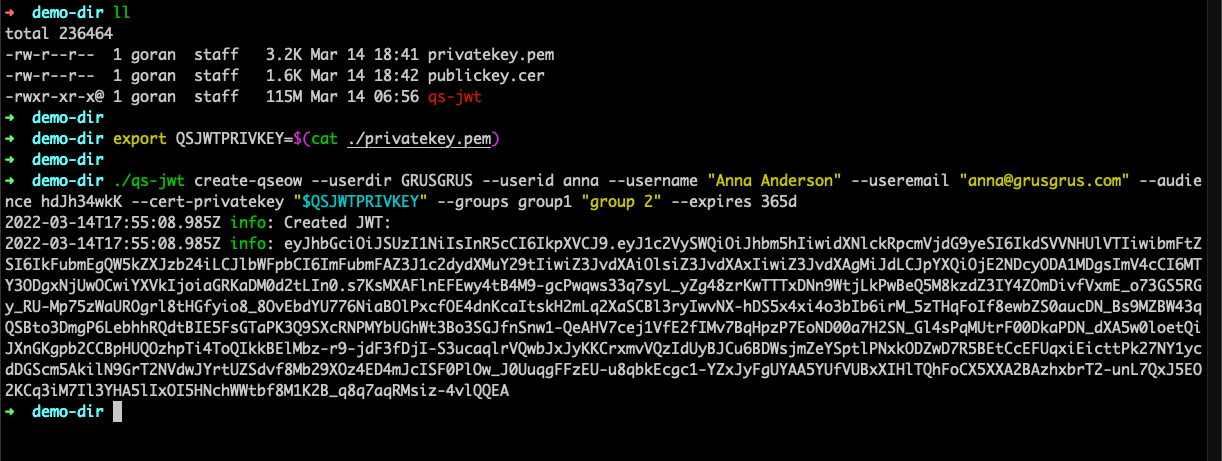
Running qs-jwt on Windows Server
This example uses a private key that was created using openssl, as describe above.
Here PowerShell is used to run qs-jwt, with the private key stored in an environment variable.
Remember: Don't forget to unblock the downloaded qs-jwt ZIP file before unzipping it. Failing to unblock it may prevent proper execution of qs-jwt.exe.
$QSJWTPRIVKEY = Get-Content .\privatekey.pem -Raw.\qs-jwt.exe create-qseow `
--userdir GRUSGRUS `
--userid anna `
--username 'Anna Anderson' `
--useremail '[email protected]' `
--audience hdJh34wkK `
--cert-privatekey "$QSJWTPRIVKEY" `
--groups group1 'group 2' `
--expires 365d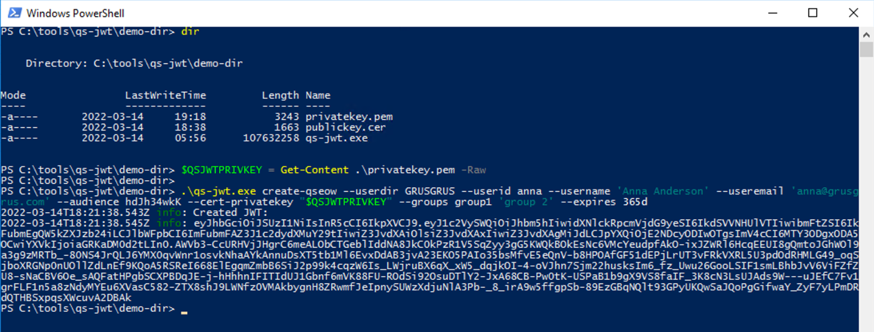
Mode 3: Create New Certificate and Key Files
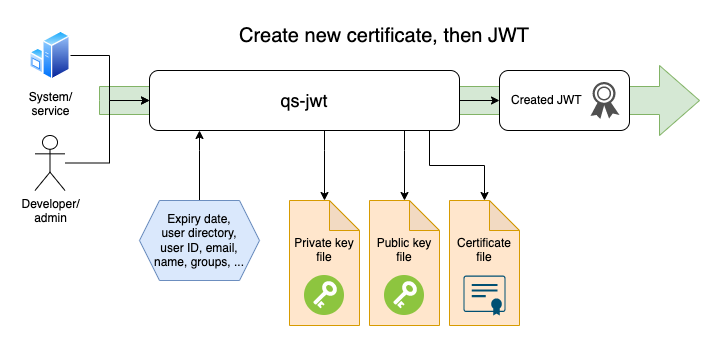
If you do not have a certificate with associated private key (PEM encoded) qs-jwt can create these for you.
You will get a complete public-private key pair rather than just the private key (which is what qs-jwt uses).
The created certificate and keys will be stored on disk as privatekey.pem, publickey.pem and publickey.cer.
An optional prefix can be added to the file names, this is done by using the --cert-file-prefix option.
Running qs-jwt on macOS
This example will:
- Create a JWT for Qlik Sense Enterprise on Windows (the
create-qseowcommand) - Create a JWT for user
annain Sense userdirectoryGRUSGRUS. Grusgrus is a fictitious company - The JWT will expire in 365 days
- A new private/public key pair will be created, as well as a new certificate based on that private key
- The created files will be prefixed with
qsjwt_ - The created certificate will expire in 400 days
- The newly created private key will be used to sign the JWT
- Set claims for useremail and username to
[email protected]andAnna Anderson, respectively - The audience option must match the audience specified in the Qlik Sense virtual proxy
- Two groups are defined for this user:
group1andgroup 2
Command:
./qs-jwt create-qseow \
  --userdir GRUSGRUS \
  --userid anna \
  --username "Anna Anderson" \
  --useremail "[email protected]" \
  --audience hdJh34wkK \
  --cert-create true \
  --cert-create-expires-days 400 \
  --cert-file-prefix "qsjwt_" \
  --groups group1 "group 2" \
  --expires 365d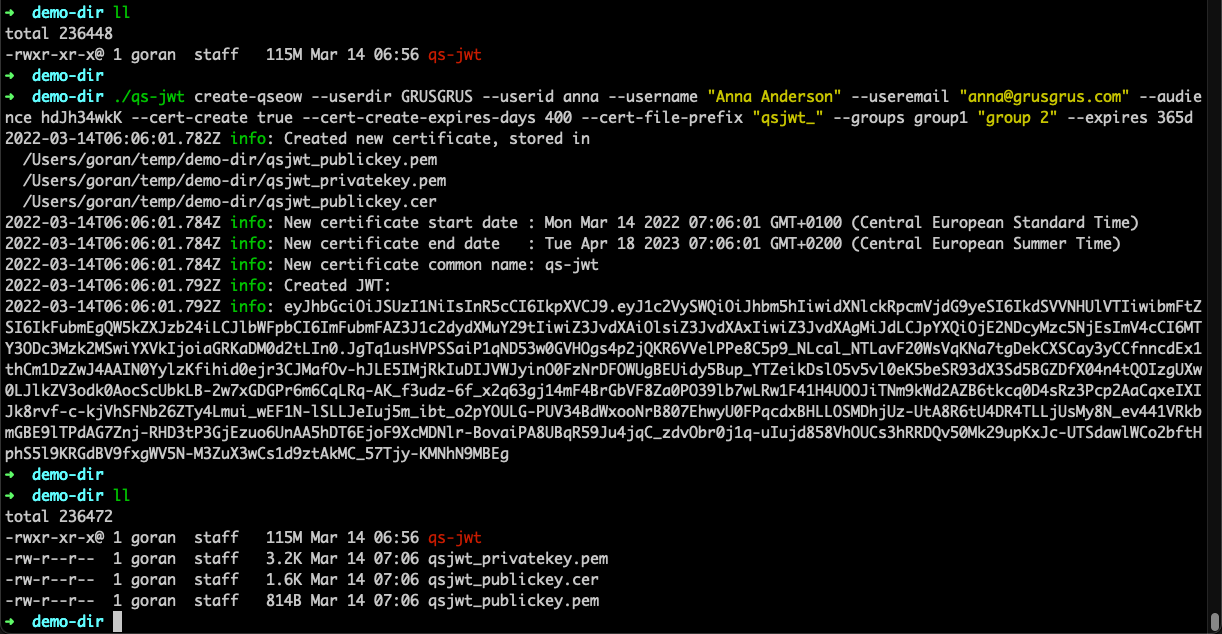
Running qs-jwt on Windows Server
Here cmd.exe is used to run qs-jwt, PowerShell works equally well.
Remember: Don't forget to unblock the downloaded qs-jwt ZIP file before unzipping it. Failing to unblock it may prevent proper execution of qs-jwt.exe.
.\qs-jwt.exe create-qseow `
  --userdir GRUSGRUS `
  --userid anna `
  --username "Anna Anderson" `
  --useremail "[email protected]" `
  --audience hdJh34wkK `
  --cert-create true `
  --cert-create-expires-days 400 `
  --cert-file-prefix "qsjwt_" `
  --groups group1 "group 2" `
  --expires 365d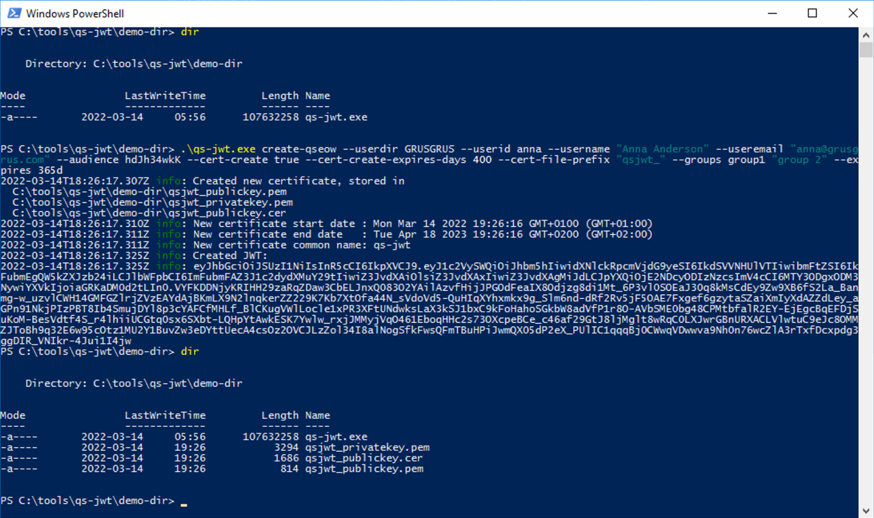
Minimal JWT (without username and email)
The --username and --useremail options are optional. If your integration only needs a stable user ID, you can create a JWT with just the core claims:
./qs-jwt create-qseow \
  --userdir MYDIR \
  --userid service-account \
  --audience my-proxy \
  --expires 1h \
  --cert-privatekey-file /path/to/private.pem
This is useful for service accounts and automated integrations where display name and email are not available or not needed.